Wednesday, June 5, 2013

How To Use Netflix For Free - Forever!

Many people might not be aware of it, but its possible to extend your Netflix trial period for as long as you want. You'd never have to pay anything to enjoy free Netflix streaming forever*.  You do need a PayPal or a Credit/Debit card with minimal funds, however.
There is nothing difficult to get down and dirty with. As a matter of fact, the method includes nothing more than a simple signup. What we are basically going to do, is make use of the free 1 month trial offered by Netflix and then keep on re-using it for the rest of our life*.
  • Make sure you have some funds (~$9) on your Credit/Debit card or PayPal. It's just for the authorization purposes.
  • After you have registered, it will take you to a page that says "Start your free month". Once you are there it'll ask you to enter your Credit/Debit Card information or login to your PayPal. Don't worry, Netflix won't charge you. As I have mentioned before, its just for authorization purposes and the money will be refunded to your PayPal/Card eventually.
Netflix Signup

  • Once you have entered the Card information or logged in to your PayPal, put a tick mark on "I agree..." check box and click on "Start Membership".
  • When it says "Add DVDs to your plan", press the "No thanks" button.
  • Click on "Continue" on the next page. Skip the survey. Make a device selection and then click on Done.
  • Now, cancel your Netflix plan so that you won't be charged for the next month. (You will be able to use Netflix for the current month.)
  • Repeat the process from step 1.  Once your 30 days trial period is over, create a new account using the same Credit/Debit Card. Yes, you can re-use the same card! Don't forget to immediately cancel your plan or else you will be charged the monthly fee.
  • Thank Netflix for being so generous enough to let you stream movies/tv shows for free. ;)
* - as long as the method  lasts.

How to limit Internet speed of Computers on a network?

There are times when you wish you could limit the internet bandwidth of a person on your network. Do you share internet with someone who always keeps his torrent client on, always streams videos online or just clogs up internet speed at exactly the moment when you are in need of it? If so, then this method might be useful to you.
SelfishNet is a software that helps you limit internet speed of computers on a network. It makes use of ARP Spoofing/poisoning in order to achieve this.
  • Disable your firewall. (Antivirus program may also block this.)
  • Now, execute the program : SelfishNetv0.2-beta.exe. Windows 7 users will need to run it as administrator (Right Click on it > Run as administrator).
  • While executing, if you receive a message box that says "problem registering the driver" or "problem installing the drivers", then you need to install WinPcap. It is required in order to capture packets travelling over a network. Once you have installed WinPcap and restarted your computer, reopen SelfishNetv0.2-beta.exe.
NIC Selection
  • Select your network adapter from the drop down list. I was connected to a wireless network via a USB adapter, so that's what I selected from the list.
  • Click on the Network Discovery button at the top and all the computers/systems on the network will be listed there.
Start ARP Spoofing
  • You can either limit the download/upload speed or completely block the internet of a particular system. To limit download/upload speed, just set the limit under "Download/Upload Cap" and click on the flash button. If you want to block the internet completely, put a tick mark on the block check-box and click on the flash button.
  • To enable internet or remove download/upload limit, press the X button and close the program. Simply pressing the X button does not seem to work most of the time. So, close the program as well.
As mentioned before, I had used the software to block internet as well as limit internet speed of different systems on my Wireless Internet network and it had worked like a charm. There's no guarantee that it will work on every computer, however.
SelfishNet is a free program developed by Clement Chazarra. 
How Does It Work?
A computer is able to determine the correct network device via something known as MAC address. Each networked device on a computer network, whether a printer, computer, router etc have their own unique MAC address.
Normal Traffic Pattern
On a normal network, each computer sends/receives internet data via a switch which is itself connected to a router. In this case, the computer takes note of the MAC address of the router so that it can locate the router and ensure that the data is received or sent from the correct place.
ARP Spoofed Network
What this program does is it spoofs the MAC address of your router. The system connects to router through the MAC address of router. But, if the MAC address of the router is copied by your computer, all the computers on the network will look for internet data in your computer, and will not be able to use internet. You, on the otherhand will be able to browse the internet in maximum speed.
Note that this is also one of the techniques used by hackers. When a MAC address is spoofed, other computers will send their data via your computer. Hence, you will be able to view the passwords or other data being sent. This is termed as Network sniffing. However, in this case, you are just spoofing the MAC address of your router in order to block others from using internet, which is not 'sniffing'. Here, you will not be able to view their data .

Tuesday, February 26, 2013

how-to-open-blocked-websites.


Hello Guyz Today we are going to show you how to open blocked websites.I think so many people are facing difficult to open youtube,facebook,orkut such websites in gcc countries.So I am giving this tricks For them.There are many software to open blocked sites like Hotspot Shield,Mask Surface etc...

But These Software's are not suitable for your computer hard disk it will make your computer low speed and 

create virus on your computer hard drive.So i am giving you a cool software it's names is ultrasurf it is easy to use and fast to open.This small program provides strong privacy protection with none of the confusing setups of other proxy tools. In seconds, you'll be ready to surf privately and securely with Ultrasurf's fast, private proxies.
When you launch this program for the first time, it loads Internet Explorer automatically. This can be changed in the options menu as this tool works well with other browsers, too. Ultrasurf has a very simple interface with Home, Retry, Option, Help, and Exit buttons. One thing we found to be a bit awkward was the golden lock icon, which showed up on our Windows Taskbar after we started the program. However, we managed to hide it by unchecking the option. Overall, this tool is very easy to use and page-loading time while browsing the Web is quite fast. It is an ideal tool for people who don't know much about how proxies work, as you don't have to assign any port numbers or play with the features in order to hide your IP address. Those who are familiar with using proxy servers can change the proxy settings manually if they wish.
If you like to protect your privacy or can't access certain Web sites due to censorship, Ultrasurf will be the easiest gateway for you. It doesn't have a plethora of options, but overall it does what it's designed to do.


Detail About UltraSurf

Name:Ultra Surf
Version:12.10
File Size:1.76 MB
Operating System:Windows 7/xp/vista/200

How to Download Facebook Videos Without Any Software


How to Download Facebook Videos Without Any Software


Normally Facebook doesn't allow you todownload videos from its site. Don't worry, here is a simple chrome extension which will help you to download videos from facebook.


Install Facebook Video Download extension on your Chrome.

After the installation completes, an icon will appear at the top right corner on chrome.

After that, play any of facebook video file and then click on Facebook video download extension.


How to Download Facebook Videos Without Any Software


Now you will see a download option to download the particular video.

Click on the download button and save the particular video file to your PC.

Note: 
This will work only in Google Chrome

Sunday, November 25, 2012

Nice tweaks for the human body


1.) If you've got an itch in your throat, scratch your ear. When the
nerves in the ear get stimulated, they create a reflex in the throat
that causes a muscle spasm, which cures the itch.

2.) Having trouble hearing someone at a party or on the phone?
Use your right ear it's better at picking up rapid speech. But, the left is better at picking up music tones.

3.) If you need to relieve yourself BADLY, but you're not anywhere
near a bathroom, fantasize about RELATIONS. That preoccupies your brain and distracts it.

4.) Next time the doctor's going to give you an injection, COUGH as
the needle is going in. The cough raises the level of pressure in your
spinal canal, which limits the pain sensation as it tries to travel to
your brain.

5.) Clear a stuffed nose or relieve sinus pressure by pushing your
tongue against the roof of your mouth then pressing a finger between
your eyebrows. Repeat that for 20 seconds it causes the vomer bone
to rock, which loosens your congestion and clears you up.

6.) If you ate a big meal and you're feeling full as you go to sleep,
lay on your left side. That'll keep you from suffering from acid reflux it keeps your stomach lower than your esophagus, which will helps
keep stomach acid from sliding up your throat.

7.) You can stop a toothache by rubbing ice on the back of your
hand, on the webbed area between your thumb and index finger.
The nerve pathways there stimulate a part of the brain that blocks
pain signals from your mouth.

8.) If you get all messed up on liquor, and the room starts spinning, put your hand on something stable. The reason: Alcohol dilutes the blood in the part of your ear called the cupula, which regulates balance. Putting your hand on something stable gives your brain another reference point, which will help make the world stop spinning.

9.) Stop a nose bleed by putting some cotton on your upper gums right behind the small dent below your nose and press against it hard. Most of the bleeding comes from the cartilage wall that divides the nose, so pressing there helps get it to stop.

10.) Nervous? Slow your heart rate down by blowing on your thumb. The vagus nerve controls your heart rate, and you can calm it down by breathing.

11.) Need to breathe underwater for a while? Instead of taking a huge breath, HYPERVENTILATE before you go under, by taking a bunch of short breaths. That'll trick your brain into thinking it has more oxygen, and buy you about 10 extra seconds.

12.) You can prevent BRAIN FREEZE by pressing your tongue flat against the roof of your mouth, covering as much surface area as possible. Brain freeze happens because the nerves in the roof of your mouth get extremely cold, so your brain thinks your whole body is cold. It compensates by overheating which causes your head to hurt. By warming up the roof of your mouth, you'll chill your brain and feel better.

13.) If your hand falls asleep, rock your head from side to side. That'll wake your hand or arm up in less than a minute. Your hand falls asleep because of the nerves in your neck compressing so loosening your neck is the cure. If your foot falls asleep, that's governed by nerves lower in the body, so you need to stand up and walk around.

14.) Finally, this one's totally USELESS, but a nice trick. Have someone stick their arm out to the side, straight, palm down. Press down on his wrist with two fingers. He'll resist, and his arm will stay horizontal. Then, have him put his foot on a surface that's half an inch off the ground, like a stack of magazines, and do the trick again. Because his spine position is thrown off, his arm will fall right to his side, no matter how much he tries to resist.

15.) Got the hiccups? Press thumb and second finger over your
eyebrows until the hiccups are over - usually, in a short while.

Sunday, June 24, 2012

Create Bootable Windows 7, Vista, or XP USB Flash/Pen Drive


Let’s begin the guide without wasting time. Just
make sure that you have a pen drive with 4GB +
capacity if you are making a bootable USB flash
drive.

 Requirements to create bootable Windows USB:
 Windows 7 or Vista ISO
 Pen drive with 4GB+ (2 GB is sufficient for XP)
 15 min. of free time

Procedure:
 1. Insert your USB flash/pen drive to your system
and backup all the data from the USB as your USB
drive will be formatted during the process.
2. Now download WinToFlash tool (free).(FROM
google)
3. Run the tool, and browse to your Windows 7,
Vista, or XP DVD files (make sure that your USB
drive letter is correct).
4. Click Create button to begin the bootable USB
process. Wait for few min. to see the bootable
USB.
5. That’s all!

Thursday, January 19, 2012

Program Webcam Attached To PC To Take Pictures Of People Using It

We all know it is not at all easy to track all the users who are using the computer, if a Windows PC is used by multiple users. Although, in some of the scenarios it is not at all important to know this and to make a complete record of this, but when it comes for security purpose and if you are not the only person using the laptop or PC, then it is better to keep a complete track of all the users and to completely monitor the users who are using the PC. So, in order to do this, your own Webcam installed in your computer may prove handy. On the same lines, today we will discuss about a small utility which can really help you in the above mentioned tracking as well as to keep an eye on all the valuables in your room, which is an additional benefit.

WebCamImageSave is basically a small, easy to use, helpful and a freely available portable application which has been specially developed for Windows based users in order to capture still images using Webcam attached with the system. It allows you to take snapshots after a defined period of interval which can be given as the number of seconds. According to the path specified by the user, it saves all the images at any local or network location. Many of the popular formats such as JPG, BMP and PNG image format are supported by this utility and it also overlays the current date and time stamp on those captured images. Apart from this, you may also choose to add custom label text to images, define label font family, and font size and style according to tour needs and requirements.

Although, if you do not mention the interval period after which you want it to take snapshot for you, than you may see that by default it is set to capture Webcam images after every 60 seconds in JPEG format. After downloading it from the below given link, you may install it in few simple steps. After installing it, you may simple launch the app and you may observe that it shows the configuration console, where you need to specify output location, image capture time interval, JPEG quality (0-100), date and time label position, text color and shade color, and custom label text. If Custom Label text option is enabled, you can specify the font size, style and size for the custom text according to the needs and requirements.


So, overall we can say that it is a nice little utility which gives you option not only to take snapshots in a simple way, but also allows you to configure the app by providing all the settings and details. You may download it and may further explore its features.

Download WebCamImageSave

Thursday, January 12, 2012

How to disable activation for any Adobe product on Windows 7

All you need to do is open this file - %windir%\system32\drivers\etc\hosts on Windows 7 - C:\Windows\system32\drivers\etc\hosts and put these lines at the bottom.

127.0.0.1 activate.adobe.com
127.0.0.1 3dns-3.adobe.com
127.0.0.1 adobe-dns-2.adobe.com
127.0.0.1 adobe-dns-3.adobe.com
127.0.0.1 ereg.wip3.adobe.com
127.0.0.1 activate-sea.adobe.com
127.0.0.1 wip3.adobe.com
127.0.0.1 wwis-dubc1-vip60.adobe.com
127.0.0.1 activate-sjc0.adobe.com
127.0.0.1 practivate.adobe.com
127.0.0.1 ereg.adobe.com
127.0.0.1 activate.wip3.adobe.com
127.0.0.1 3dns-2.adobe.com
127.0.0.1 adobe-dns.adobe.com

Here is a picture of my host file so that you can see where to put it. ( btw if you ever played World of Warcraft or Lineage 2 this should be easy )


Note: You will need to have a valid serial number.


Note 2 : Make sure that you open the hosts file with Notepad, with Administrator privileges.


just make sure that you open the host file with Administrator rights, otherwise you`ll not be able to save it.

Do this :
1. Go to your start menu -> Programs and find Notepad
2. Right click on the icon and select "Run as Administrator"
2b. If any warning pops up click allow or yes
3. On Notepad click File -> Open and open your hosts file in C:\Windows\system32\drivers\etc
3b. If you dont see all the hosts file and you are the correct folder then select from
the drop menu "All Files" or "Show All Files"
4. Copy the lines from above and paste it inside the file (under the other similar lines)
5. Click Save and Close notepad
6. Reopen the file to make sure that you have done everything properly.

"

Tuesday, January 10, 2012

Make A Autorun File For Ur Cd


Did You Notice, whenever You Insert any game 0r software cd, or simply consider Windows Xp Operating system cd. As soon as You Insert the disk in CD-ROM, It automatically runs the cd.

If you want to make a autorun file for that CD you are ready to burn just read this...

1) You open notepad
2) now you writ: [autorun]
OPEN=INSTALL\Setup_filename.EXE
ICON=INSTALL\Setup_filename.EXE

Now save it but not as a .txt file but as a .inf file.

But remember! The "Setup_filename.EXE" MUST be replaced with the name of the setup file. And you also need to rember that it is not all of the setup files there are called '.exe but some are called '.msi

3) Now burn your CD with the autorun .inf file included.

4) Now set the CD in you CD drive and wait for the autorun to begin or if nothing happens just double-click on the CD drive in "This Computer"

Thursday, December 29, 2011

How to Resize Disk Partition without Formatting


Is it possible to change the size of disk partition without reformatting the computer? Yes, if you have a Windows 7 & or Vista installed you can use their built in procedure to change the size of the partition. If you have a earlier versions of operating system Windows 95/98 or XP it’s impossible to do this without the use of any commercial partition software. Follow the steps below to change the partition using Disk Management.”


  • Click on Start.
  • Right-click on Computer then click on Manage .
  • Click on Disk Management located under Storage.
  • You will need to shrink a volume first if there is no unallocated space but if you have any unallocated space you can use it to expand the particular volume. 
  • To shrink a volume, right-click on a volume then click on Shrink Volume, then adjust the space to create some unallocated space. 
  • After adjusting the space, click Shrink to decrease the size of the particular partition 
  • You can now use that space to increase another partition size. 
  • To increase pa partition, right-click on the partition you want to increase then click on Extend Volume. 
Here is what you must remember the unallocated space MUST BE contiguous connecting space behind the volume you want to increase or it will not work out or the Extend Volume option will remain greyed out.


If you experience trouble performing the partition resizing using Windows built in tool you may want to look into some alternative options. You can use  EaseUs Partition Master Home Edition. It is a free program that allows you to extend partition and manage disk space easily and trouble free. It can do the job everytime without fail.

How to Download Facebook Videos


How to Download Facebook Videos

Facebook started supporting video sharing and posting in 2007. Millions of Facebook users and music bands have taken well to sharing videos on their profiles. Facebook now supports high definition playback and longer videos. There are two types of facebook video, the ones posted by other users or friends, video embedded into messages and wall posts.


There is no native support to download the videos on facebook on to your computer, nevertheless you can download them with a few tricks and tweaks that are browser specific. Many third party extensions, script and software allow you to download and watch the videos posted on Facebook. Let us look into some of the ways to download Facebook Videos.


Downloading Facebook Videos using Browser Tweaks :

Mozilla Firefox
You can use a Mozilla Firefox add-on to download a Facebook video. Follow these step by step instructions to download the file to your computer :
  • Go to the Video Downloader Helper Firefox add-on page.
  • Click on Download Now.
  • Install the add-on for Firefox.
  • Restart your browser.
  • Go to the Facebook Video you would like to download and click on the red arrow.
  • Now you have successfully downloaded the Video to your Computer.

Google Chrome :

The Videos that you play on Facebook are saved in Google chrome's cache. You can access the cache and download the video on to your Computer. Follow these step by step instructions to download the video.
  • Go to Chrome Cache View Download Page.
  • Download and install the latest version of that software.
  • Open the Chrome Cache view Software once you have viewed a video on Facebook.
  • Save the selected Videos on to your computer as shown in the picture above.
  • Now you have successfully downloaded the videos on to your computer.

How to Set Long height profile pictures in Facebook


Your Facebook Profile Picture sets the first impression on whoever visit your profile for first time. Everyone wants to set a Stylish and Attractive Display Picture on their Facebook Profile, fan pages and groups. Here is the very good online tool by which you can set a long height Facebook profile picture. With this tool you can also re-size, and special effects and download the picture in your computer.


  • First of all go to this Website.
  • Click on Load Photo Button if you wat to take your picture from computer otherwise click on Use webcam to take a picture.
  • Now configure and Edit your photo as you want.
  • Click on Login to FB button to set this picture as your profile picture.
  • Now give your Username and Password to login into your Facebook account and then click on Allow button in the permission and request section.
  • Now your edited image will be set as your profile picture.
  • If you don't want this edited image as your profile picture for now then click on the Download Pic button. This will download the picture in your computer and you can set this image as profile picture manually whenever you want.
              

Amazing Tank Game - Pocket Tank


"Choose a weapon, Set the Trajectory, Power and Fire!"


Pocket Tank is a 1-2 player computer game for windows and Mac OS X, created by Blitwise Productions, developer of Super DX-Ball and Neon Wars. Adapted from Michael Welch's earlier Amiga game, Scorched Tanks, this newer version features modified physics, dozens of weapons ranging from simple explosive shells to homing missiles, and the ability to move the tank. It supports several expansion packs. At the moment players can have upto 250 different weapons. Pocket Tank is often abbreviated PTanks.


Plz comment if u like this...

Angry Bird game full version free download


Angry Birds  is a puzzle computer game developed by Finnish computer game developer Rovio.

In the game, players use a slingshot to launch birds at pigs stationed on or within various structures, with the intent of destroying all the pigs on the playfield. As players advance through the game, new birds appear, some with special abilities that can be activated by the player. Rovio Mobile has supported Angry Birds with numerous free updates that add additional game content, and the company has even released stand-alone holiday and promotional versions of the game.


Download Here

How to Download Torrent File from IDM

Downloading files from Torrent site is easy and completely legal (unless you are downloading copyrighted files). Downloading speed from torrents depends upon various factors like seeders, leechers, internet connection, etc. If have high speed internet connection but still not getting good downloading speed then you can use IDM to download them. There are various methods on the internet to do this but this is the easiest, simplest and tested method.

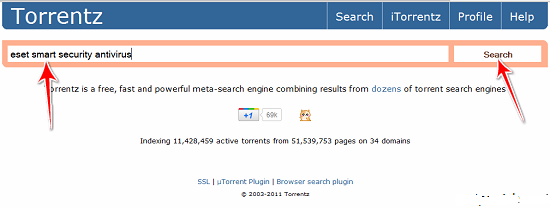
Open www.torrentz.eu then search and download the torrent file (.torrent) of your desired file from there.


  • Once you have downloaded that torrent file then go to the website www.torcache.net
  • Now upload that torrent file that you have just downloaded and click on the cachebutton.


This will generate a new torrent link of your file just copy that link.

  • Now go to the www.torrific.com and get register there if you don't have account otherwise login into your account.
  • In the text field paste that new torrent file that you have get in the 4th step and click on get button.


You will see all the torrent files that are present in that torrent. Click on initiate bittorrent transmission button.


Now all the files that are present in that torrent file will be available to download just click on any of the file that you want to download and IDM window will popup.


Now Start Downloading your file.

You should use this method only if you are getting very poor speed with your torrent client because if you download it with IDM the link will not be resumable and you have to finish it without breaking your internet connection.

Related Posts with Thumbnails